Teaching Basic Computer Skills to Young Children: A Parent's Complete Guide
Author
RaisoActive - Kids Activities and Fun Learning
Published
Updated
Reading Time
16 min read

- Children as young as 3 can begin building computer skills — but the right starting point depends on their age and fine motor development
- Mouse and touchscreen skills come first; keyboard basics are best introduced around age 5-6 when letter recognition is established
- Safe internet habits are not too early to start — even a 4-year-old can learn the golden rule: always ask a grown-up before clicking
- Indian families have excellent free and low-cost app options, from Khan Academy Kids to BYJU's early learning programmes
- The goal is not screen time for its own sake, but purposeful digital literacy — a foundational life skill in today's India
Why Computer Skills Matter More Than Ever for Young Children
In households across India — from Mumbai apartments to Bengaluru tech corridors to smaller cities like Nagpur and Coimbatore — children are growing up surrounded by screens. Smartphones, tablets, laptops, and smart TVs are part of everyday family life. But there is a difference between a child who passively watches cartoons and a child who confidently navigates a computer, uses educational apps purposefully, and understands the basics of staying safe online.
Teaching basic computer skills to young children is not about creating tiny techies or pushing academics too soon. It is about digital literacy — the ability to use technology as a tool for learning, creativity, and communication. Just as we teach children to hold a pencil and form letters, we can teach them to hold a mouse and navigate a screen. Both are foundational skills for the world they are growing up in.
This guide walks you through exactly how to do that, step by step, with age-appropriate milestones, practical activities, recommended apps for Indian families, and honest guidance on managing screen time. Whether your child is 3 or 8, you will find a clear starting point here.
Get weekly digital learning tips for young children
Join thousands of Indian parents and teachers who receive our curated activity ideas for building early computer and digital literacy skills.
Age-by-Age Guide: What to Teach and When
One of the most common questions parents ask is: "At what age should I start?" The honest answer is that it depends on the skill. Computer literacy is not one skill but a collection of many — and each has its own developmental sweet spot.
Ages 3-4: Touchscreen First, Mouse Later
Young children aged 3-4 have the fine motor skills to use a touchscreen but generally struggle with the coordination required for a traditional mouse. A touchscreen is an intuitive first computer interface — tapping, swiping, and pinching mirror the hand movements children already use with physical objects.
At this age, focus on: navigating a tablet with supervision, opening and closing a favourite app, swiping through a digital picture book, and very basic touch-and-drag interactions. Keep sessions short — 10 to 15 minutes — and always sit alongside your child. The goal is familiarity and comfort with the interface, not any specific skill.
Ages 5-6: Introducing the Mouse
By age 5, most children have developed enough hand-eye coordination to use a standard mouse. Begin with a child-sized mouse if possible — smaller hands need a smaller device. The key skills to practise at this stage are: moving the cursor to a target, single-clicking to select, double-clicking to open, and basic drag-and-drop.
Patience is essential here. Mouse control is genuinely difficult for small hands. Expect wobbling cursors and missed clicks for weeks. Games that require clicking and dragging — like simple puzzle apps or colouring programs — are the best way to build mouse confidence without frustration.
Ages 6-8: Keyboard Basics
Keyboard skills are best introduced once a child can recognise most letters — usually around age 6 for children who have been learning to read. Start with hunt-and-peck typing: finding and pressing one key at a time. Do not worry about touch-typing technique at this age. That comes later.
Fun keyboard starter activities include: typing their own name, typing simple words from a spelling list, using arrow keys to move a game character, and exploring the spacebar, backspace, and Enter keys. Free tools like Typing Club's beginner modules or the BBC's Dance Mat Typing are excellent and work well on Indian internet connections.
Touchscreen before mouse, mouse before keyboard — follow the developmental sequence.
Rushing to the keyboard before a child has mastered mouse control is like asking them to run before they can walk. Each interface layer builds the hand-eye coordination and spatial reasoning needed for the next. Children who progress through this sequence naturally become far more confident and precise computer users than those pushed to keyboard skills too early.
of Indian households with children under 12 have at least one smartphone — making digital literacy not a privilege but a practical necessity for children across income groups
Source: IAMAI India Internet Report
Safe Internet Basics: Starting Young
Online safety conversations do not need to wait until your child is a teenager. In fact, starting early — in simple, age-appropriate language — is one of the most important things you can do as a parent. Children who learn safe habits young internalise them far more deeply than those who receive warnings only after an incident.
For ages 3-5, internet safety is simple: always ask a grown-up before clicking anything new. That single rule, consistently reinforced, prevents the vast majority of accidental exposures at this age. Explain it positively: "The internet is full of wonderful things, and I want to help you find the good ones."
For ages 6-8, you can introduce slightly more complex ideas: we do not share our real name, school, or address online; we tell a trusted adult immediately if we see something that makes us uncomfortable; not everything we read online is true. Role-play these scenarios — "What would you do if a game asked for your phone number?" — to make the lessons stick.
- Use parental controls on all devices — both Android and iOS have built-in family safety features that are free and effective
- Keep the computer in a shared family space, not in the child's bedroom, so usage is naturally supervised
- Set up a child-friendly browser like Kiddle or use Google SafeSearch locked on
- Create a family technology agreement together — children who help make the rules follow them more willingly
- Enable YouTube Kids rather than regular YouTube for children under 8
Recommended Apps and Websites for Indian Families
The app market for young children is enormous and often overwhelming. Below are options that are genuinely educationally strong, appropriate for Indian children, and either free or very reasonably priced. We have selected these based on curriculum alignment, absence of aggressive advertising, and reliability on Indian internet speeds.
For Ages 3-5: Playful Learning Apps
Khan Academy Kids is the single best free educational app for this age group. It covers early literacy, numeracy, social-emotional learning, and creative arts through beautifully designed activities, with no advertisements. It works offline once downloaded — a significant advantage in areas with unreliable connectivity. BYJU's Early Learn is a strong Indian alternative with content aligned to Indian curriculum norms and available in multiple regional languages.
For Ages 5-7: Creativity and Coding
ScratchJr (free, tablet) is the gold standard for introducing coding concepts to young children. It requires no reading and lets children animate their own stories and games by snapping together colourful code blocks. Google's Teachable Machine (browser-based, for parents to explore together with children) is a wonderful way to spark curiosity about how computers "learn." Tux Paint is a free, child-safe digital art program that works on low-powered computers and builds mouse precision beautifully.
For Ages 7-8: Early Digital Skills
BBC Dance Mat Typing is a free, charming, and highly effective typing programme designed for children. Code.org's Course A introduces block-based coding with familiar characters and is used in thousands of schools across India. Storybird (free tier available) lets children create and illustrate their own digital storybooks — a wonderful blend of literacy and digital creativity.
- No in-app purchases or advertisements targeting children
- Offline functionality or low data usage for areas with limited connectivity
- Open-ended creativity features, not just tap-the-right-answer quizzes
- Age verification or no social features that allow contact with strangers
- Positive, encouraging feedback rather than penalty-based game mechanics
Balancing Screen Time: Practical Guidance for Indian Families
Screen time is one of the most contested topics in modern parenting, and it generates a great deal of anxiety. The most important thing to understand is that not all screen time is equal. A child passively watching back-to-back YouTube videos is having a fundamentally different experience from a child actively building a story in ScratchJr or practising typing with a parent's guidance.
Current guidelines from the WHO and the Indian Academy of Pediatrics recommend no recreational screen time for children under 2 (video calls with family are fine), no more than one hour per day for ages 3-5, and up to two hours for ages 6-8 — with a strong preference for co-viewing and interactive use over passive consumption.
In practical terms for Indian families, this often means: one focused 20-30 minute educational app session in the morning or afternoon, and one family screen-sharing activity (like watching an educational YouTube video together and discussing it). Evenings are better reserved for outdoor play, reading, and family time without devices.
Quality and context matter far more than the number of minutes.
A child who uses a computer purposefully for 20 minutes — practising mouse skills, creating a digital drawing, or exploring an educational app with a parent — benefits more than a child who has 'only' 60 minutes of unrestricted tablet time. When evaluating your child's screen use, ask: Is this building a skill? Are they actively thinking and creating, or passively consuming? Am I involved and aware of what they are doing?
Children who use digital technology interactively with a parent or teacher show three times greater learning gains than those who use it alone without guidance, according to research on educational technology effectiveness
Source: Journal of Educational Psychology, Technology in Early Childhood
When to Introduce Coding Concepts
Coding is often treated as a separate, specialised subject — but in early childhood, coding concepts are simply structured thinking skills that can be built without any screen at all. Understanding when and how to introduce formal coding tools is important for getting the sequence right.
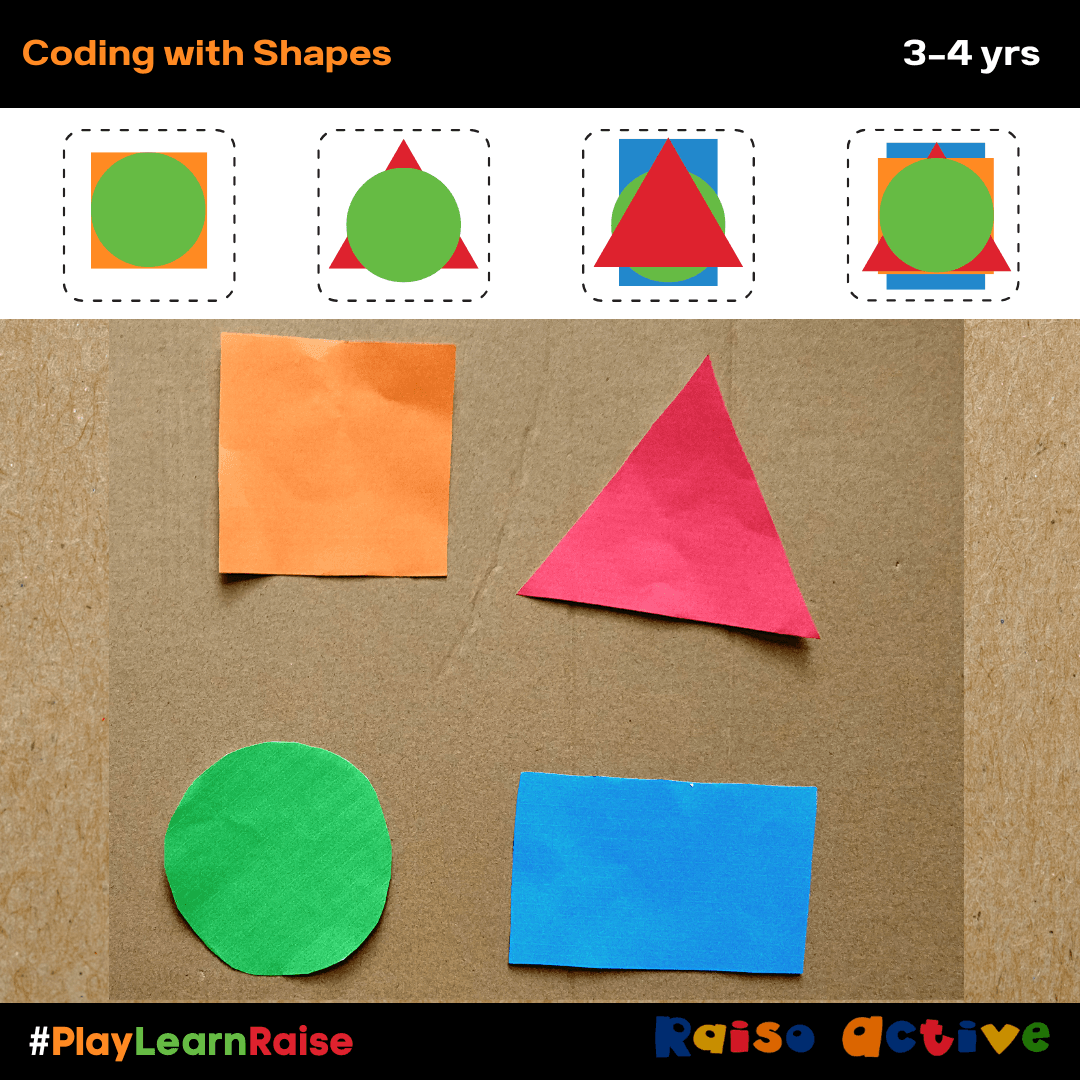
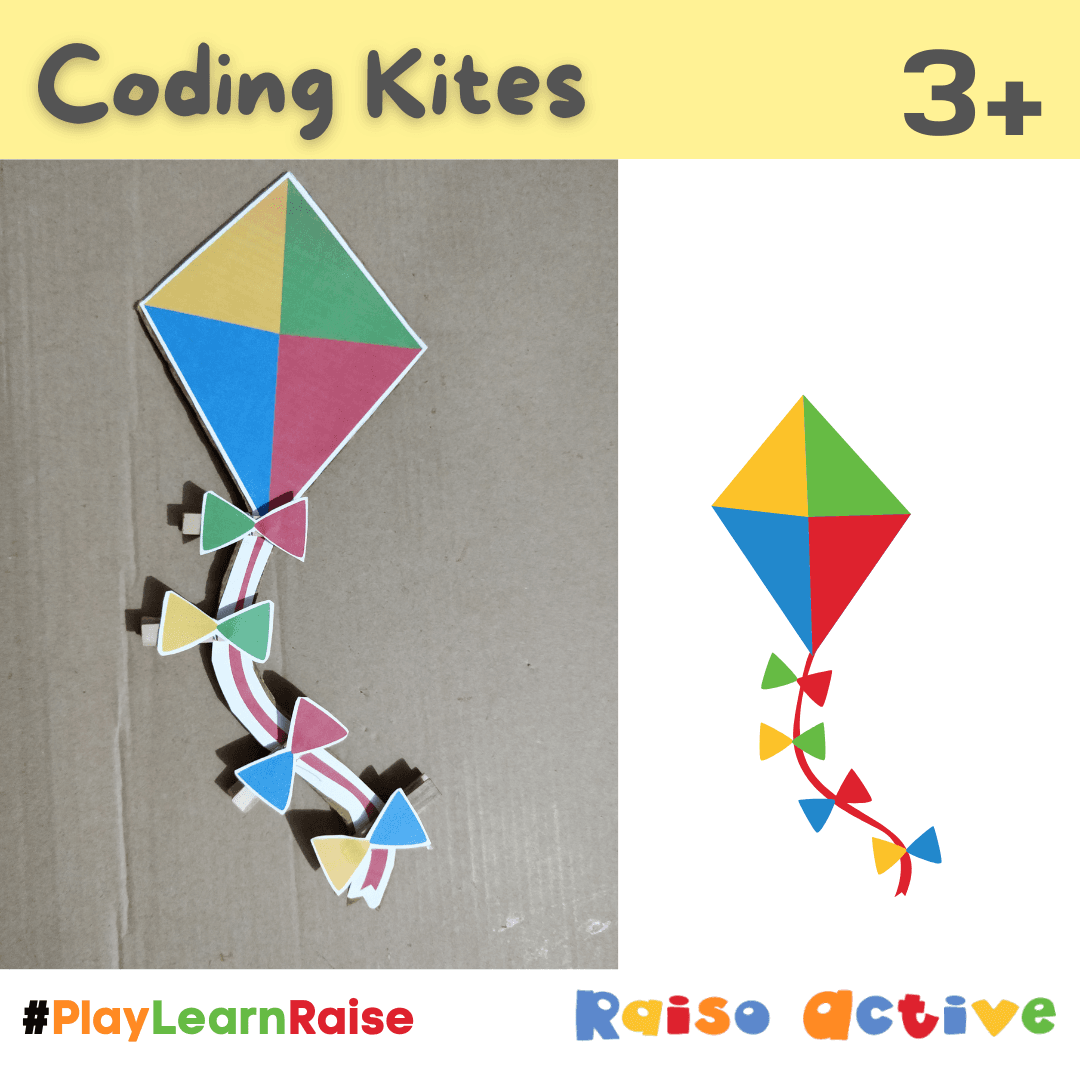
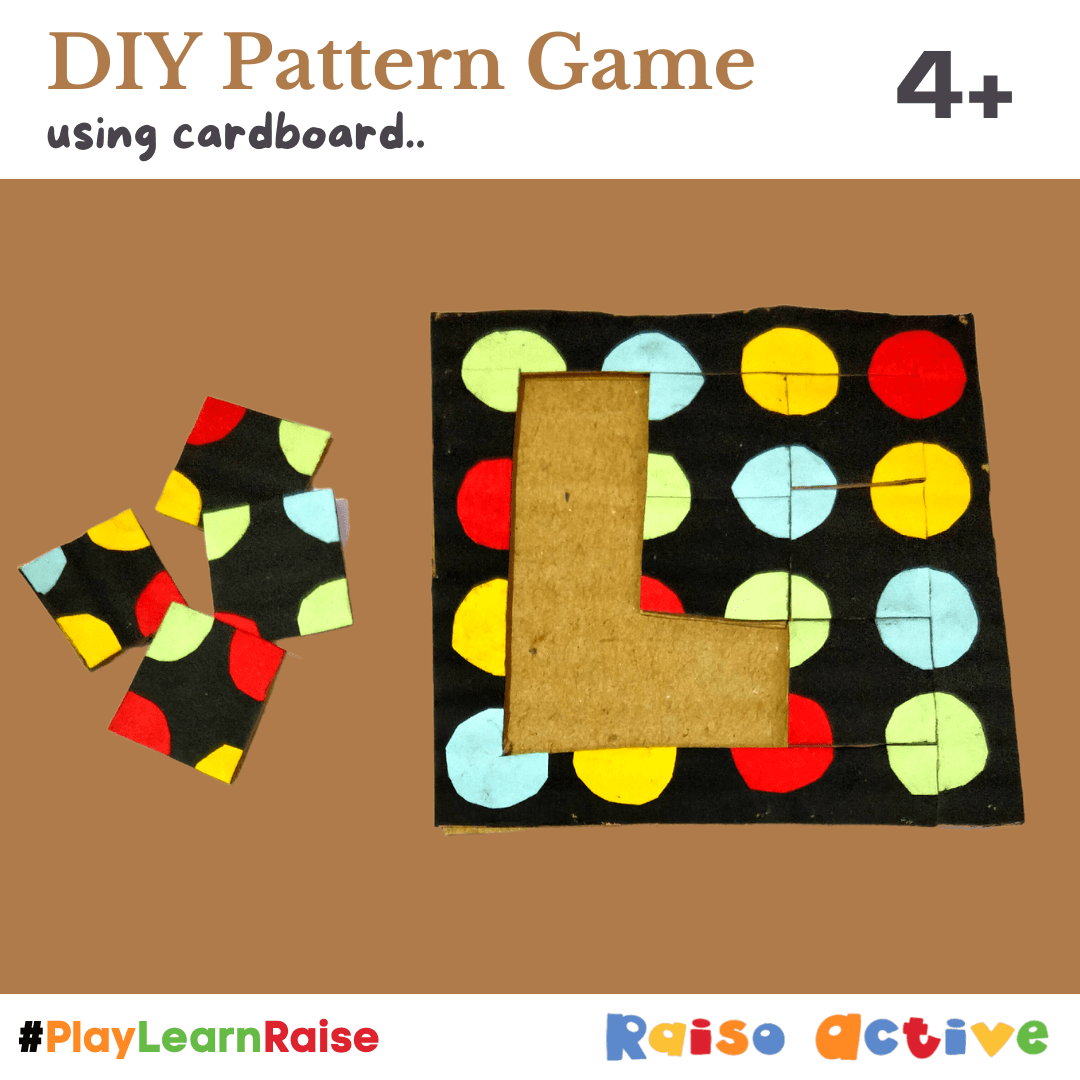
Before a child touches any coding app, they benefit enormously from unplugged activities that build the underlying concepts: sequencing (arranging picture cards in order), algorithms (giving a friend step-by-step instructions to find a hidden toy), and pattern recognition (extending colour or shape patterns). These activities are suitable from age 3 and require no technology whatsoever.
Once these foundations are in place — typically by age 5 or 6 — screen-based coding tools like ScratchJr become far more meaningful. The child already understands what a sequence of instructions does; the tool simply gives them a new way to express that understanding. India's NEP 2020 explicitly supports this approach, embedding computational thinking across subjects from the foundational stage rather than treating it as a standalone technology class.
- Your child becomes upset or aggressive when screen time ends — this signals dependency rather than purposeful use
- Screen use is replacing physical play, reading, or social interaction rather than supplementing them
- Your child cannot describe or explain what they were doing on screen — a sign of passive consumption
- Sleep is being disrupted — any screens within one hour of bedtime affect sleep quality for young children
- Outdoor play and hands-on creative activities are declining — these remain the most important learning activities for under-8s
A 6-Step Plan to Introduce Computer Skills at Home
Start with supervised touchscreen exploration
Begin with a tablet and one or two carefully chosen apps. Sit alongside your child for every session in the first month. Narrate what you see: "You tapped the star and it opened a new page — that is how we click to choose things on a computer." Familiarity and confidence come before any specific skill.
Introduce the mouse with a fun target game
Set up a simple mouse practice game — many are freely available online, involving moving a cursor to click on colourful targets. Use a child-sized mouse if your child's hand is small. Expect and celebrate imprecision: "You nearly got it! Try moving the mouse a little more slowly." Five to ten minutes daily is far more effective than one long session a week.
Practise mouse skills through creative tools
Once basic cursor movement is established, move to a simple paint program like Tux Paint. Drawing on a computer screen requires the same mouse coordination as clicking, but the creative output provides motivation to persist. Ask your child to draw their favourite animal, a scene from a favourite story, or a picture of the family. Save and print their work to display — this makes the digital feel real and meaningful.
Introduce the keyboard with their name
The most motivating first keyboard experience is typing their own name. Open a large-font word processor, explain the letters on the keyboard, and help them hunt and peck each letter. Print the result. Then expand to a few favourite words: their pet's name, "amma," "appa," or their school. Keep sessions to 10-15 minutes and always end on a success.
Explore a coding app together
Once mouse and basic keyboard skills are in place (usually by age 6-7), introduce ScratchJr or Code.org Course A. Sit together for the first few sessions and narrate what the code blocks do. Ask questions rather than giving answers: "What do you think will happen if we add this block? Let us try and see." The goal is curiosity and experimentation, not completing levels.
Establish internet safety conversations as a routine
From the very first screen session, weave in safety language naturally: "We always ask before we click on something new, right?" As your child grows, expand the conversations: "What would you do if a game asked for your real name?" Make these discussions warm and curious rather than scary. Children who feel they can come to you with questions are infinitely safer online than those who feel they will be scolded for asking.
Create a family technology charter together
Involve your child in making the rules about computer use. Sit down together and agree on: which apps and websites are allowed, how long sessions last, where devices are used, and what happens when time is up. Children who co-create the rules experience them as fair rather than arbitrary, and are far more likely to self-regulate. Review the charter every few months as your child grows and their needs change.
- +Intuitive for small hands — mirrors physical object manipulation
- +No coordination gap between intention and cursor movement
- +Ideal for touch-and-drag learning apps and digital picture books
- +Works on affordable tablets widely available in Indian market
- +Builds early digital confidence without frustration
- -Develops fine motor precision and hand-eye coordination
- -Required for most school computer labs across India
- -Opens access to the full range of educational software
- -Keyboard skills directly support literacy and writing development
- -Better suited for creative work: drawing, writing, coding
The parent's presence transforms screen time into learning time.
The single most powerful factor in whether computer time benefits a young child is whether a knowledgeable, engaged adult is present. You do not need to be a tech expert. You simply need to sit alongside your child, ask questions, name what is happening on screen, and celebrate their discoveries. This co-engagement turns passive screen use into active, language-rich learning.
Raise a Digitally Confident Child — One Step at a Time
Get practical, age-appropriate digital literacy activities, printable worksheets, and app recommendations for young children delivered to your inbox weekly. Trusted by parents and teachers across India.
Frequently Asked Questions
At what age should I introduce a computer to my child?
My child is more interested in games than educational apps. What should I do?
How do I handle screen time limits without constant battles?
Are there good computer skills resources in Indian regional languages?
Should I worry about my child developing poor posture from computer use?
How do I know if my child is ready to use the internet independently?
Free worksheets for this topic
Browse all worksheets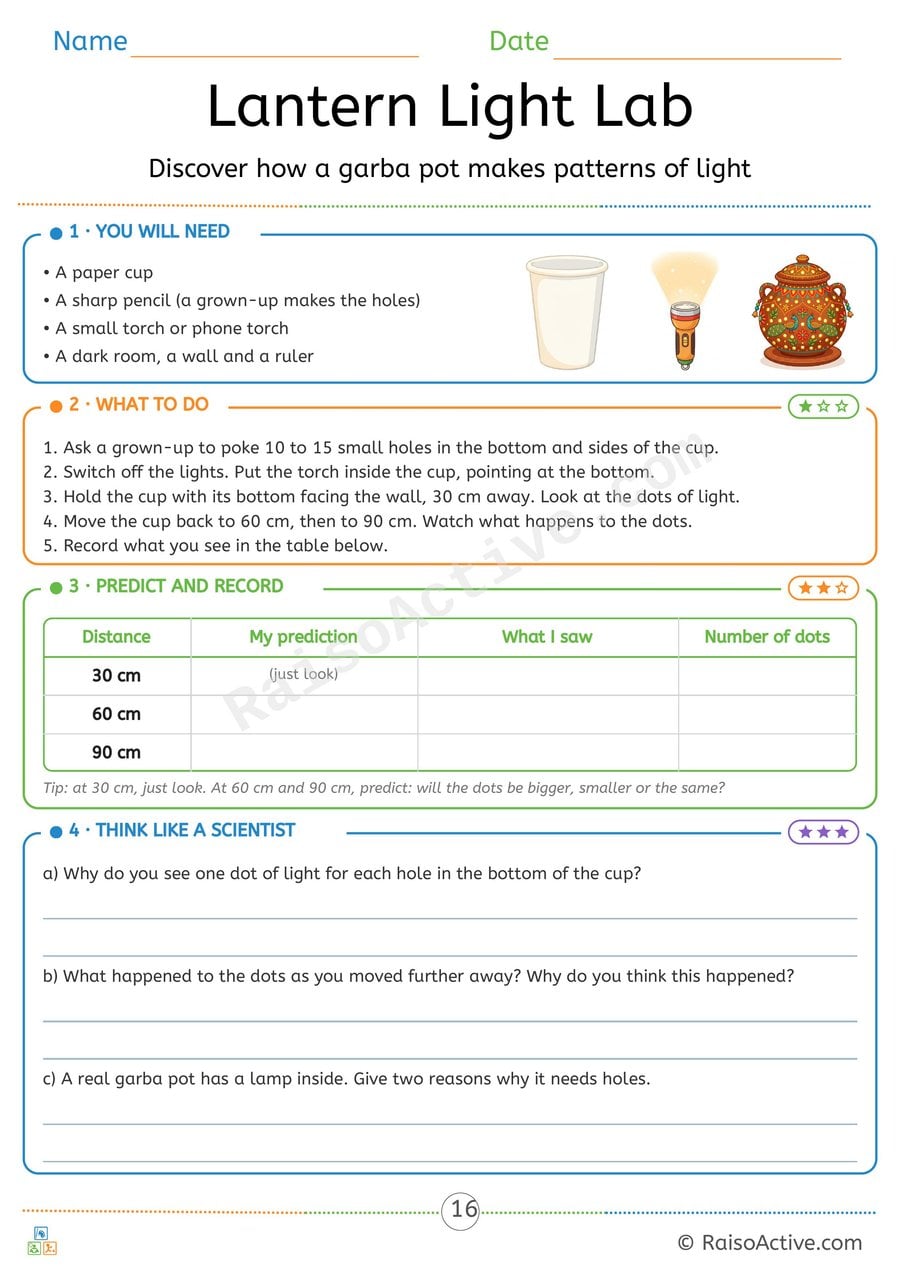
Lantern Light Lab: Navratri Garba Pot Light Experiment
Ages 7-11 · Grade 2–Grade 3Ages 7-11 · Year 3–Year 4Ages 7-11 · Class 2–Class 3Ages 7-11
Children make holes in a paper cup, shine a torch through it and see one spot of light for each hole. They predict and record what happens as they move further from the wall, and explain the results and why a real garba pot needs holes.
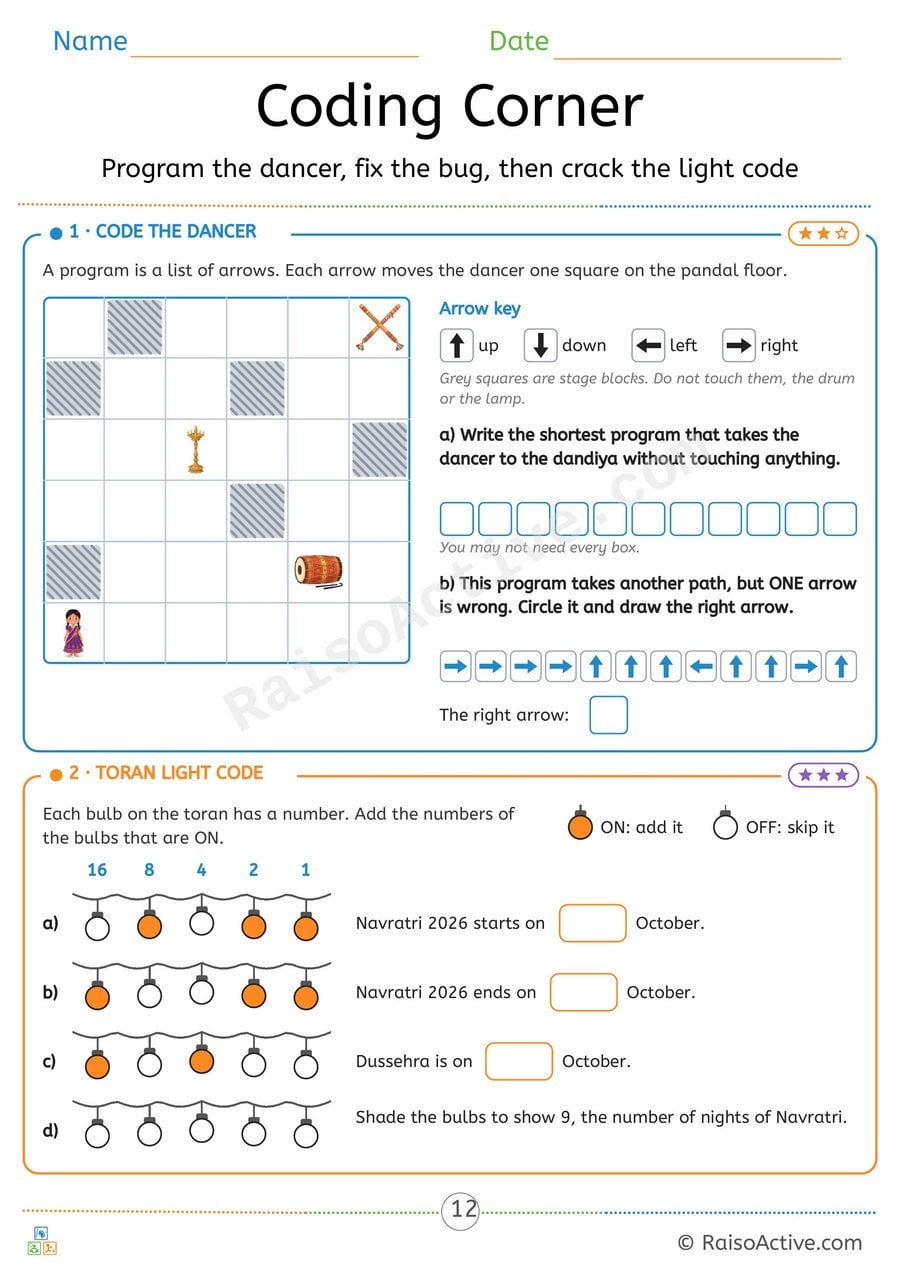
Navratri Coding Corner: Program the Dancer and Toran Light Code
Ages 7-11 · Grade 2–Grade 3Ages 7-11 · Year 3–Year 4Ages 7-11 · Class 2–Class 3Ages 7-11
Children write the shortest arrow program to move a dancer across a grid without touching obstacles, find and fix a bug in another program, and add the values of lit bulbs (16, 8, 4, 2, 1) to read binary numbers that give the dates of Navratri 2026 and Dussehra.

Soap & Pepper Science Experiment Worksheet for Preschoolers
Ages 3-5 · Preschool–Pre-KAges 3-5 · Nursery–ReceptionAges 3-5 · Nursery–LKGAges 3-5
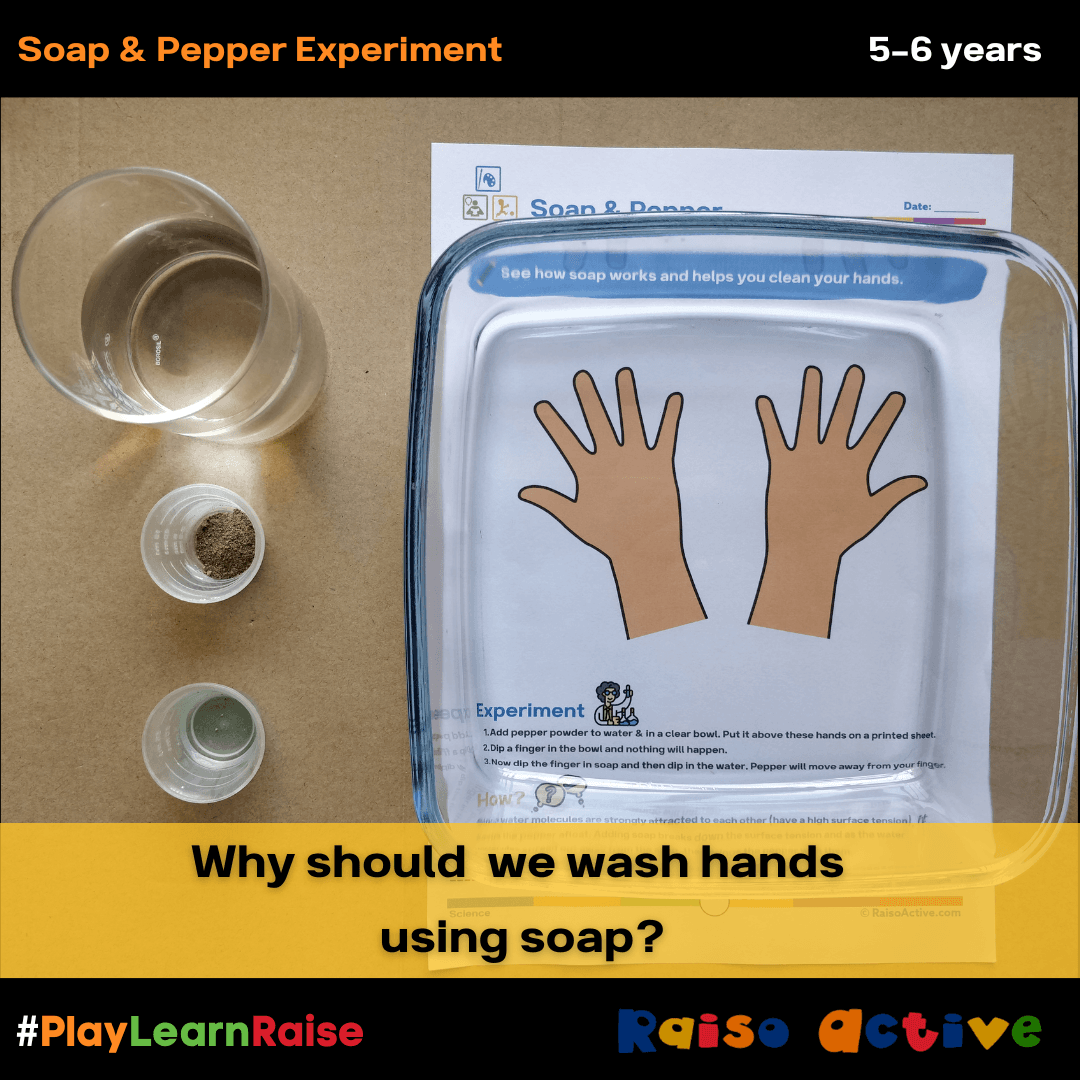
This simple experiment introduces children ages 3-5 to the basic science of surface tension and how soap breaks it, using pepper flakes sprinkled on water as a visual demonstration. Watching the pepper scatter away the instant soap touches the water gives children a concrete, memorable example of cause and effect, an early building block for scientific thinking.
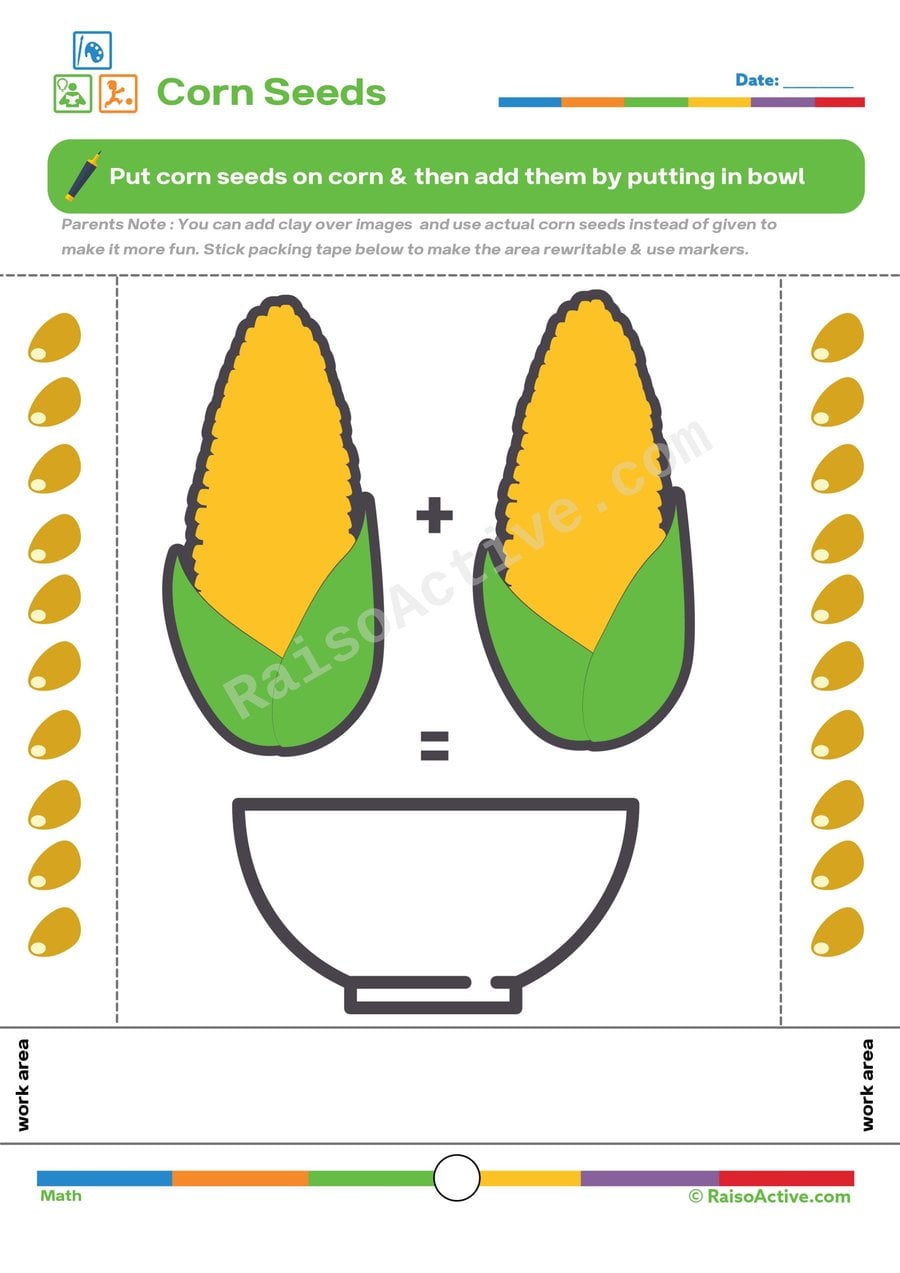
Corn Seed Addition Worksheet for Preschoolers
Ages 3-5 · Preschool–Pre-KAges 3-5 · Nursery–ReceptionAges 3-5 · Nursery–LKGAges 3-5
Counting corn seeds on two ears of corn and combining them into one total teaches children ages 3-5 the core concept of addition as joining groups together, using a concrete, countable image rather than abstract numerals alone. This worksheet also builds one-to-one correspondence, since accurate addition depends on touching or pointing to each seed exactly once while counting.

Written by
Hemsweta Jain · Teacher Cheena
MBA and Early Childhood Educator, teaching since 2014 · Founder of RaisoActive, Mumbai
Published · Last reviewed
Related Resources
Printable Resources(10)
View all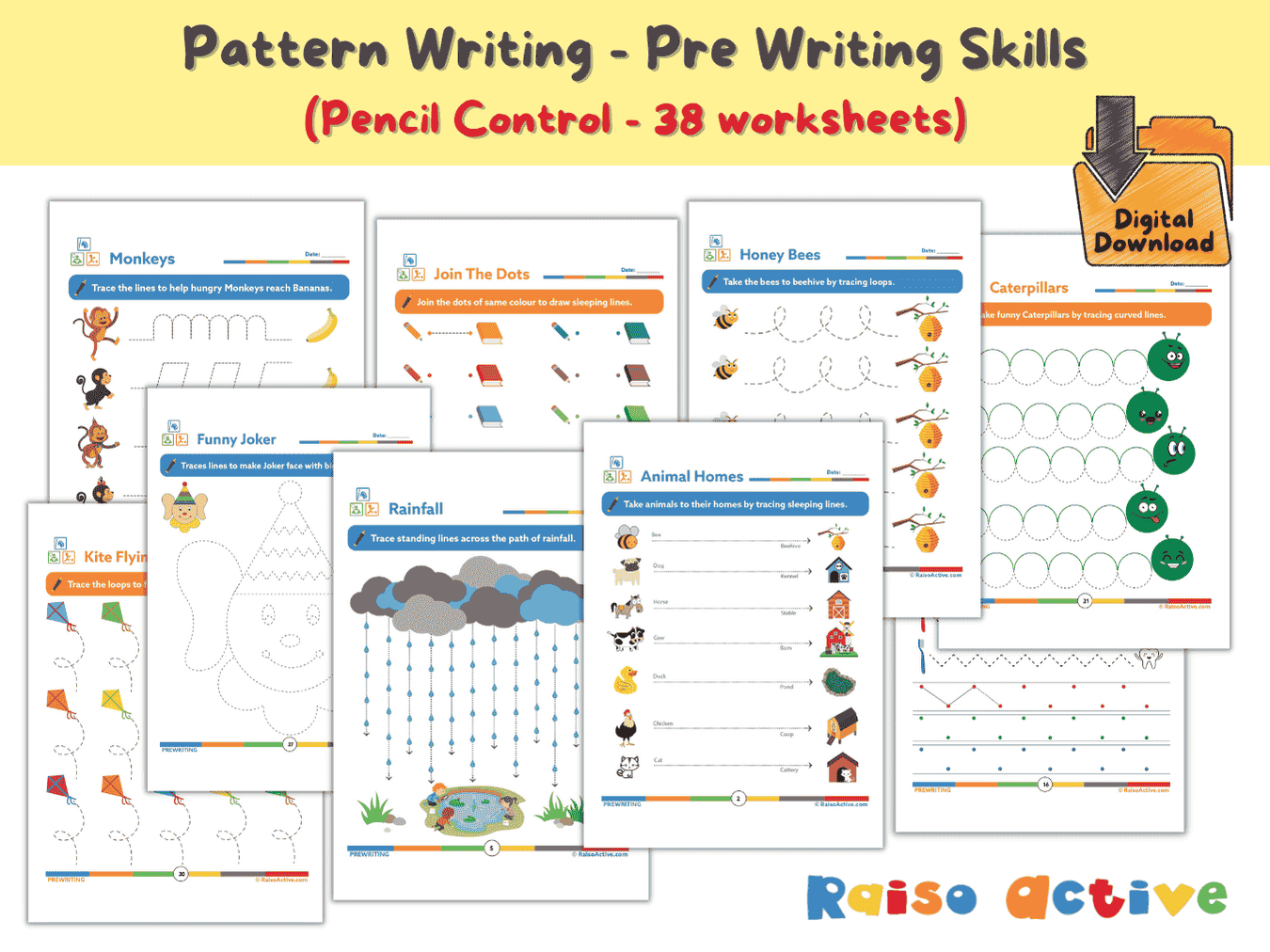

Pattern Writing Pre-writing Skills Activity Book for 3-4 Year Olds
Ages 3-4 · PreschoolAges 3-4 · NurseryAges 3-4 · 44 pages
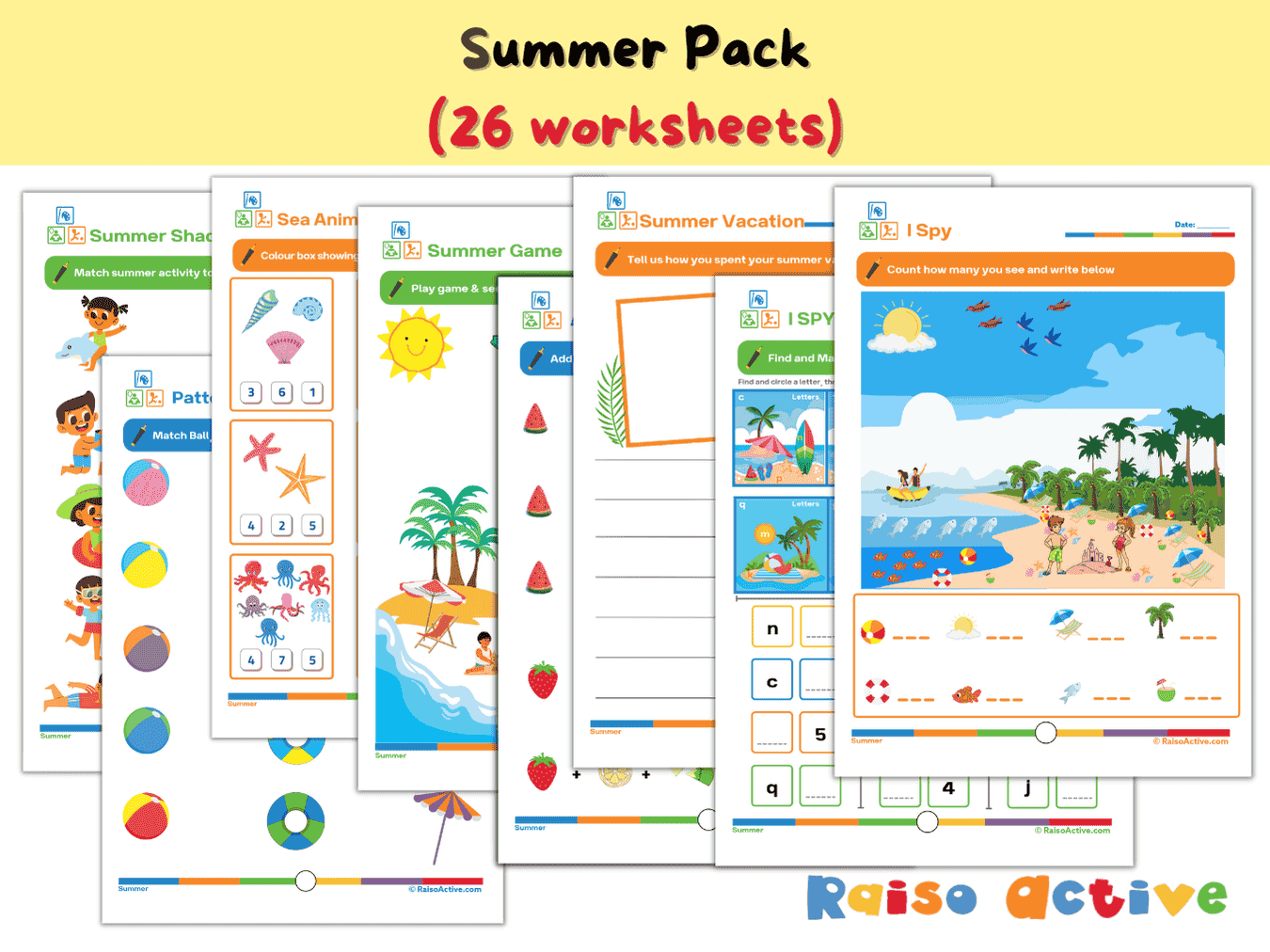

Summer Activity Pack: Math, Literacy, Puzzles & More for Preschool & Kindergarten
Ages 3-7 · Preschool–Grade 1Ages 3-7 · Nursery–Year 2Ages 3-7 · Nursery–Class 1Ages 3-7 · 26 pages
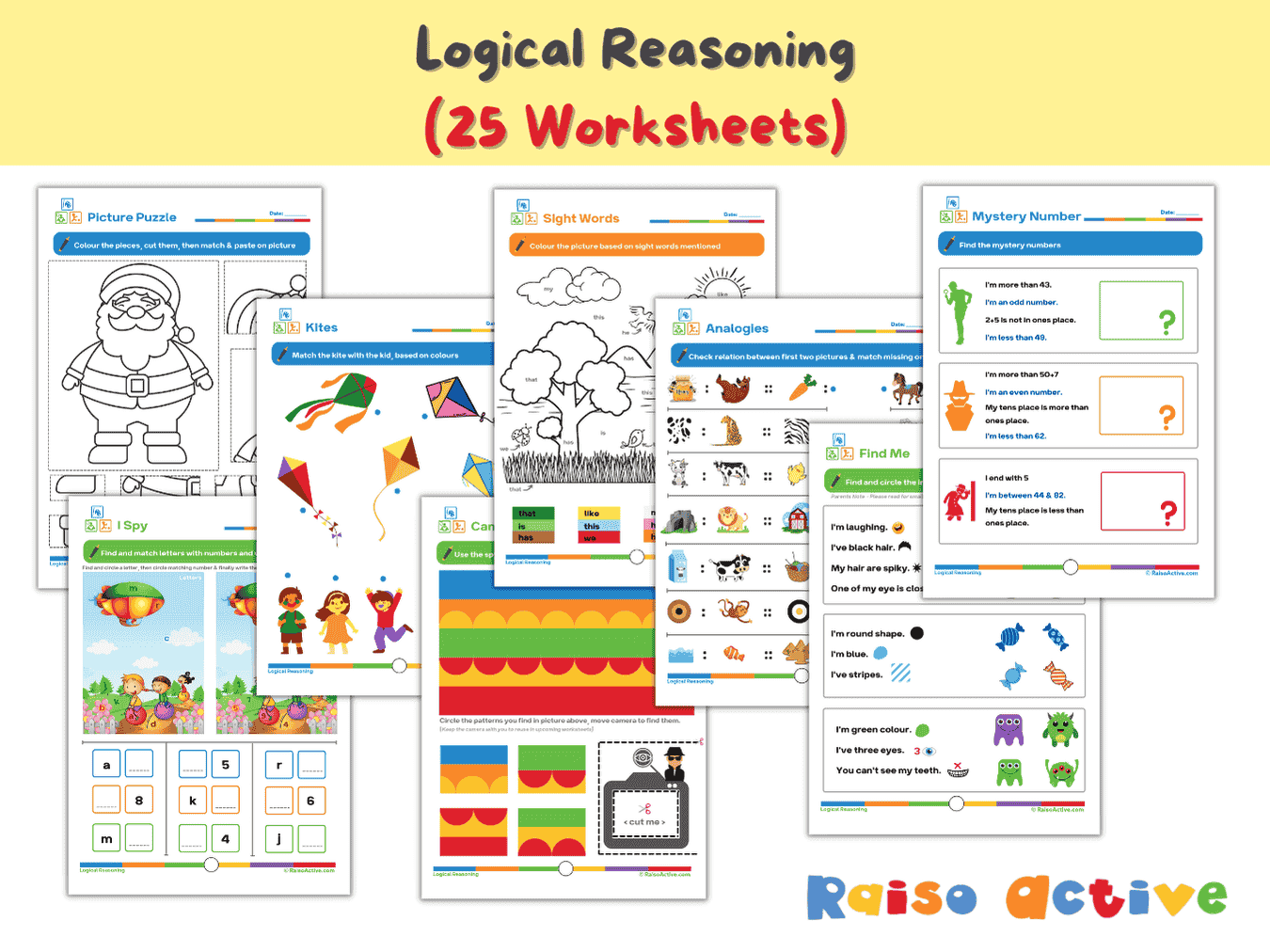

Logical Reasoning Activity Book for Preschool & Kindergarten | Patterns, Puzzles & Analogies
Ages 4-7 · Pre-K–Grade 1Ages 4-7 · Reception–Year 2Ages 4-7 · LKG–Class 1Ages 4-7 · 26 pages
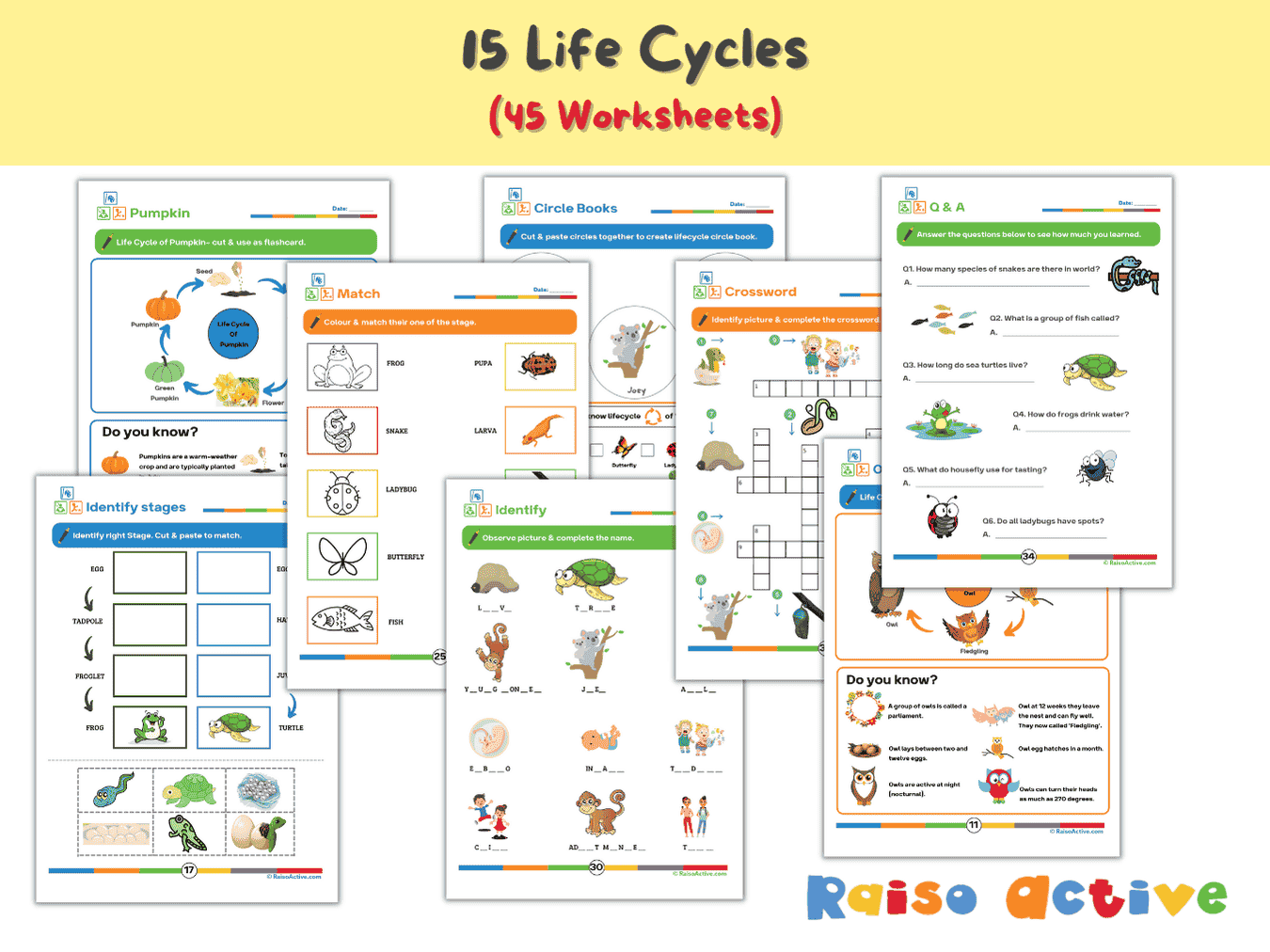

Lifecycles Activity Book & Flashcards for Preschool & Early Elementary
Ages 3-8 · Preschool–Grade 2Ages 3-8 · Nursery–Year 3Ages 3-8 · Nursery–Class 2Ages 3-8 · 46 pages
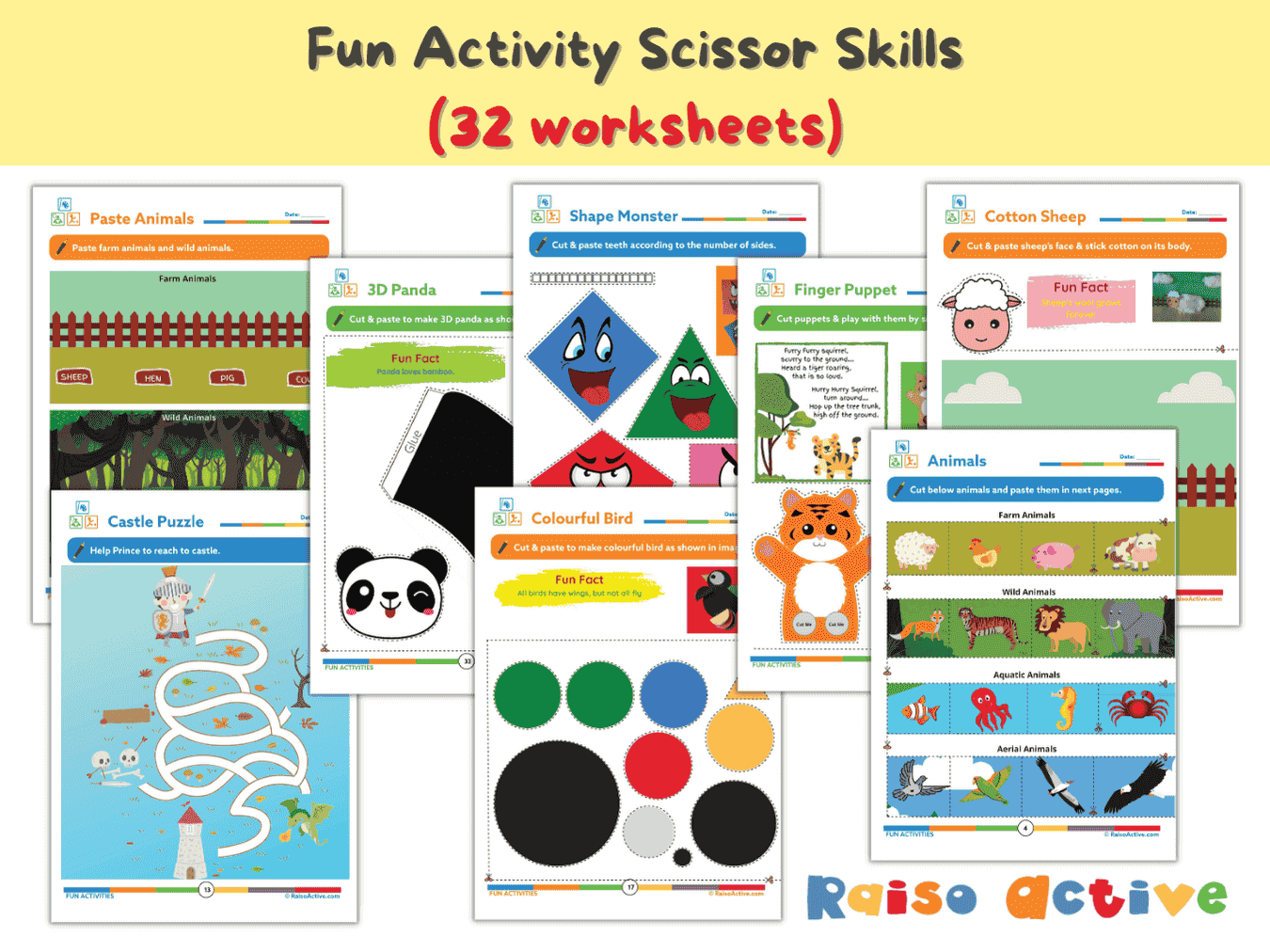
Preschool Scissor Skills Activity Book: Fine Motor & Craft Fun for Ages 3-6
Ages 3-6 · Preschool–KindergartenAges 3-6 · Nursery–Year 1Ages 3-6 · Nursery–UKGAges 3-6 · 35 pages
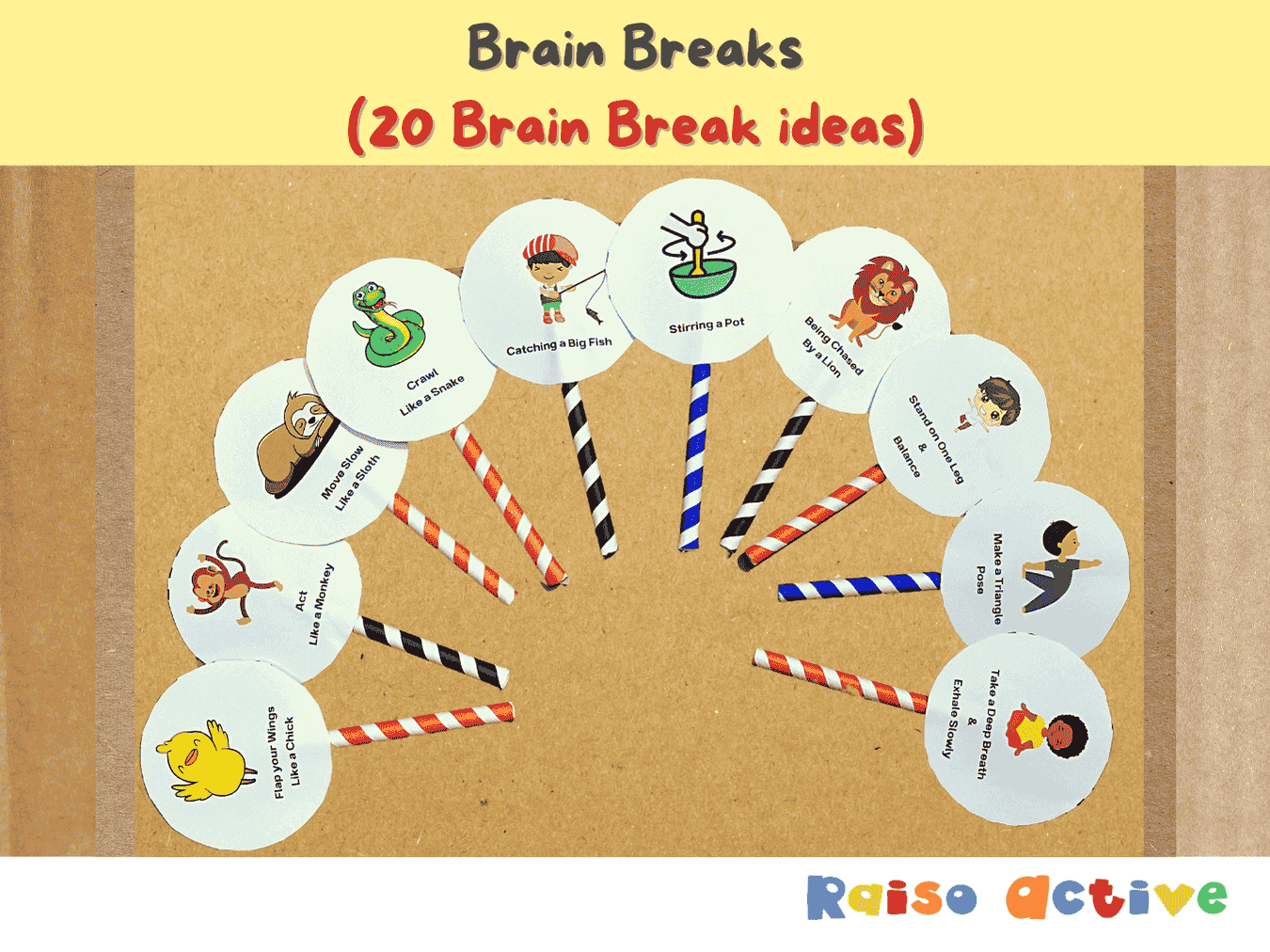
Gross Motor Movement & Imaginative Play Flashcards for Toddlers & Preschoolers
Ages 2-5 · Preschool–Pre-KAges 2-5 · Nursery–ReceptionAges 2-5 · Nursery–LKGAges 2-5 · 5 pages
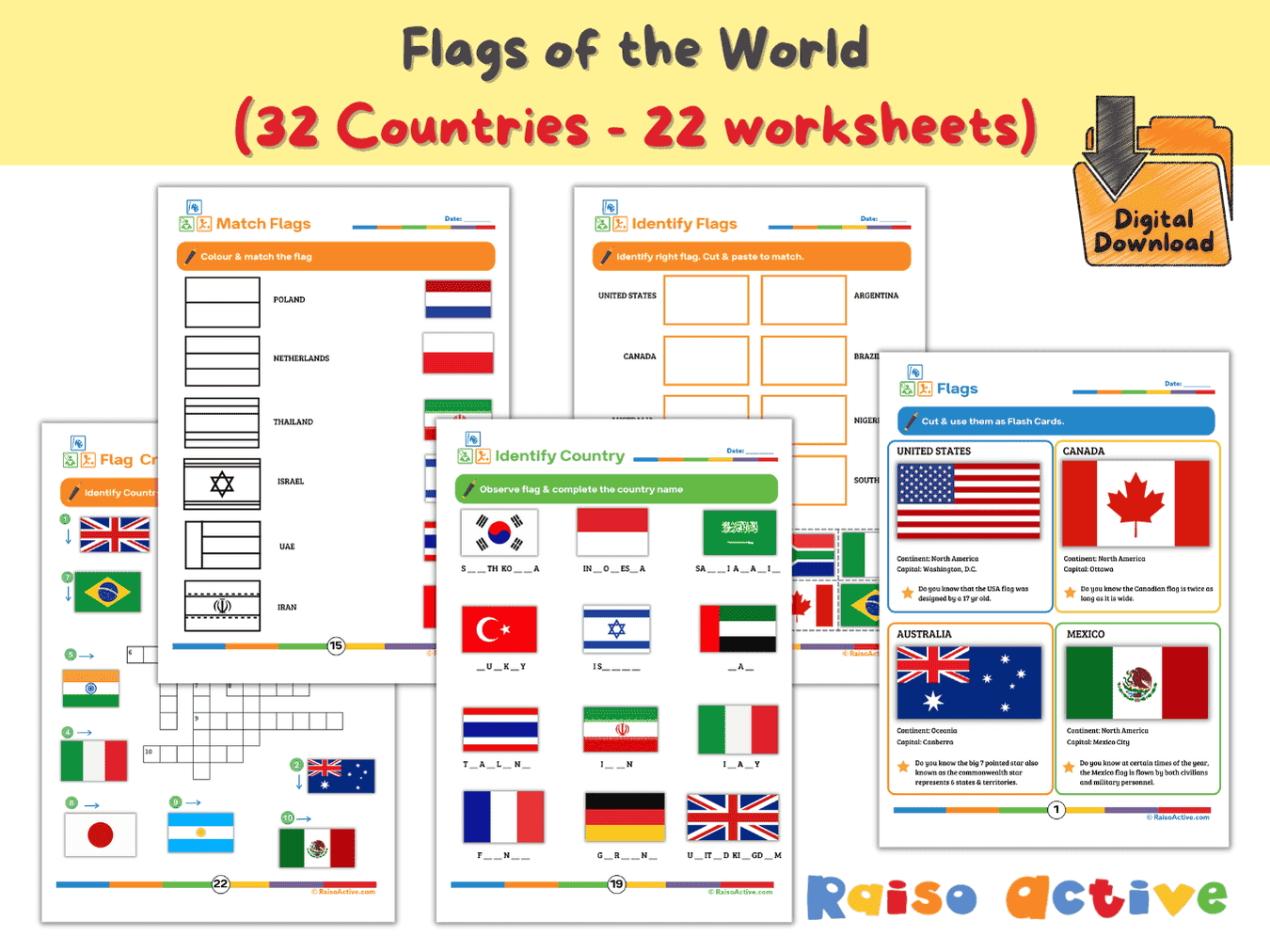
Flags of the World Activity Book & Flashcards for Kids (Ages 5-9)
Ages 5-8 · Kindergarten–Grade 2Ages 5-8 · Year 1–Year 3Ages 5-8 · UKG–Class 2Ages 5-8 · 23 pages
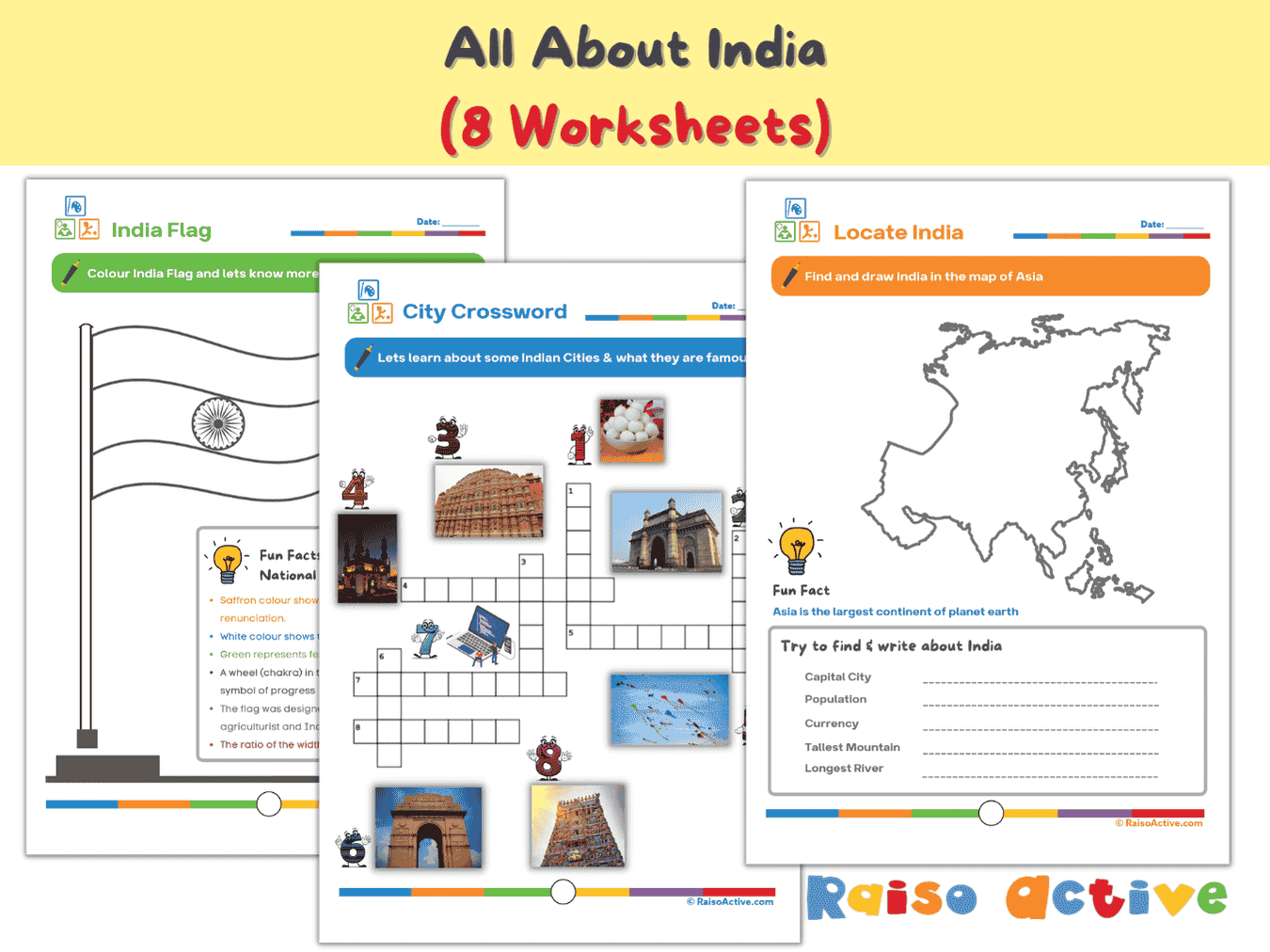
India Activity Book for Kids: Explore Geography, Culture & Symbols (Ages 5-8)
Ages 5-8 · Kindergarten–Grade 2Ages 5-8 · Year 1–Year 3Ages 5-8 · UKG–Class 2Ages 5-8 · 8 pages

Month 9: Holistic Preschool Play Learning | Ages Up to 4
Ages 3-4 · PreschoolAges 3-4 · NurseryAges 3-4 · 30 pages
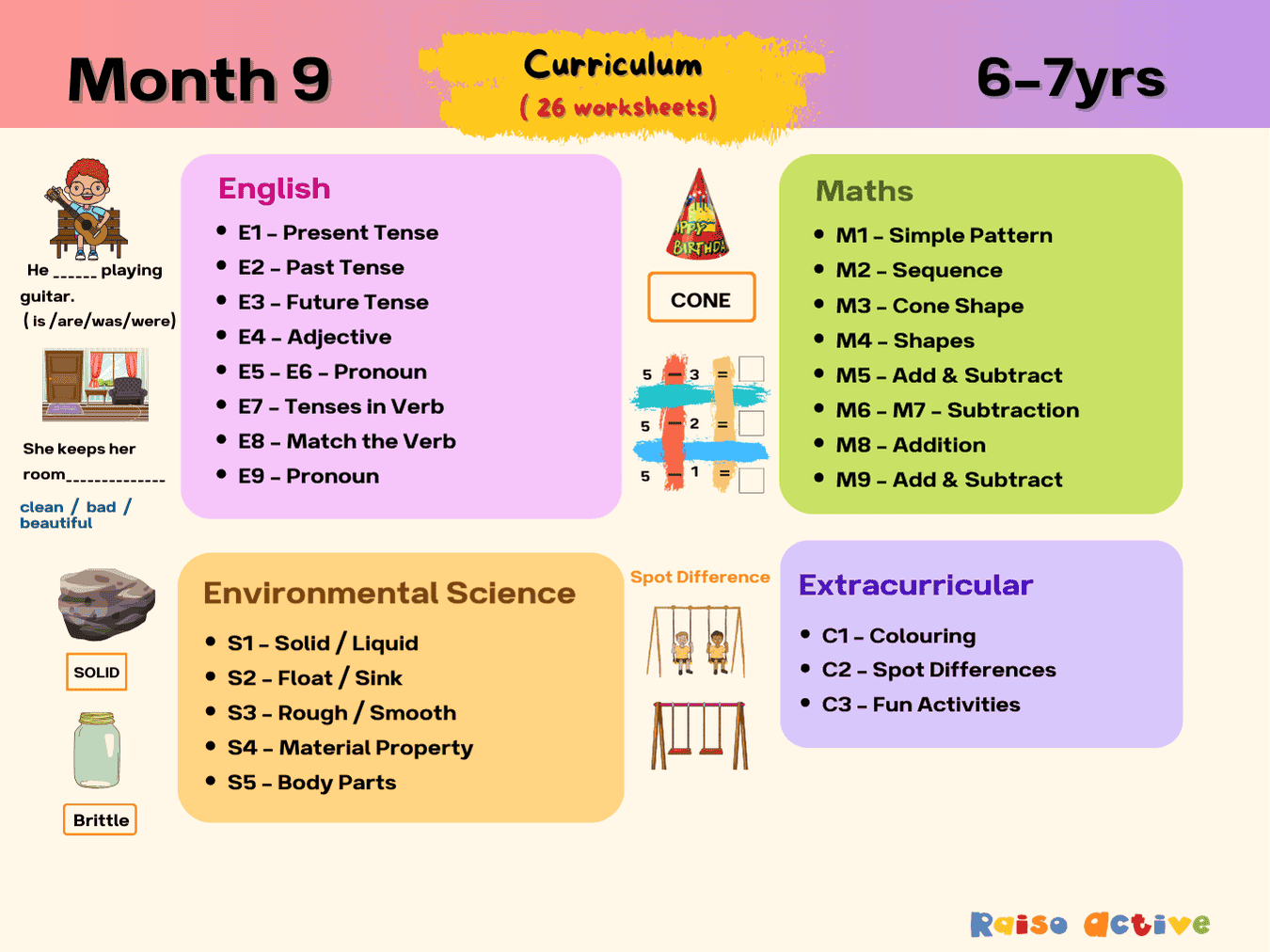
Month 9: Multi-Subject Early Learning | Ages 6-7
Ages 6-7 · Grade 1Ages 6-7 · Year 2Ages 6-7 · Class 1Ages 6-7 · 29 pages